Your first project
A project is one game: its cards, the way they are laid out, and their pictures and fonts. This guide makes one, and then finds its way round the editor with a finished game open in it: Who Eats Whom? Pond Chain, ten creatures and plants of a pond, two copies of each, and its rules on pages of their own.
1. Make a project
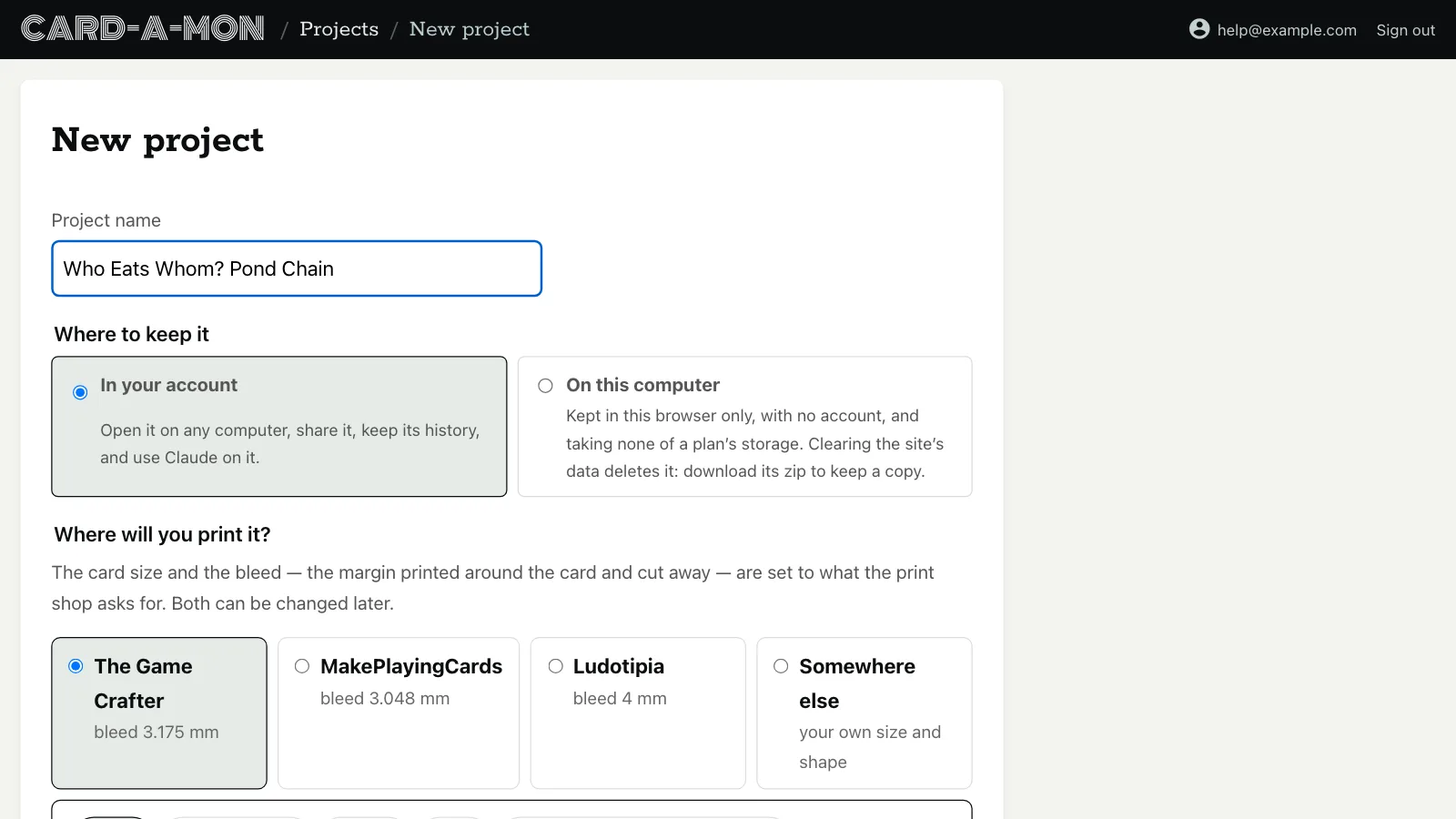
On your projects page, choose New project. Give it a name, or keep the one it is given, and say where the cards will be printed: The Game Crafter, MakePlayingCards and Ludotipia each ask for their own bleed, the margin printed around the card and cut away, so that a picture running to the edge of the card has no white line left beside it. Somewhere else lets you give your own size and shape.
Then pick what you are making — cards, chits and tiles, boards, mats, or rules, booklets and score pads — and its size. The pond game is on poker cards, 63.5 by 88.9 mm, printed at The Game Crafter.
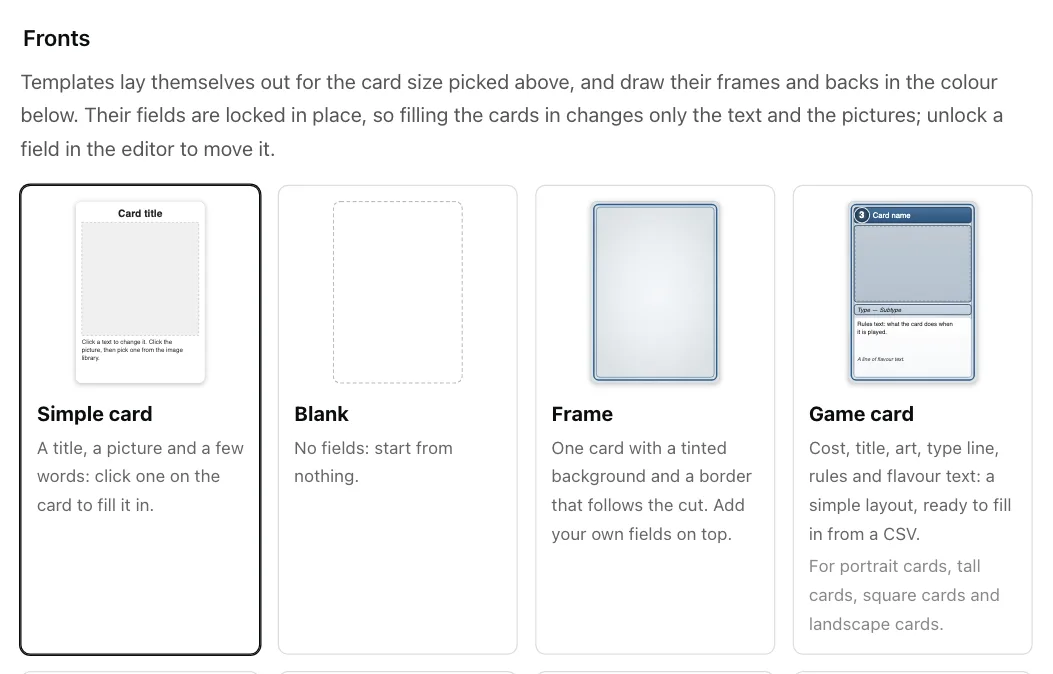
Further down, pick a front: a template that lays itself out for the size you picked, from a simple card with a title, a picture and a few words to a fantasy, monster or trading card, tokens, a deck of playing cards or flashcards. Its fields are locked in place, so that filling in the cards changes only their words and pictures; you can unlock any of them in the editor. Blank starts from nothing.
Last, a back: none for one-sided cards, a blank one to design yourself, or a patterned or plain back in a colour you pick. Then press Create project.
There is one other way to start. Import a project, on the projects page, makes a project from a zip or JSON exported from Card-a-mon: see the whole project as a file.
2. The editor
A project opens in the editor:
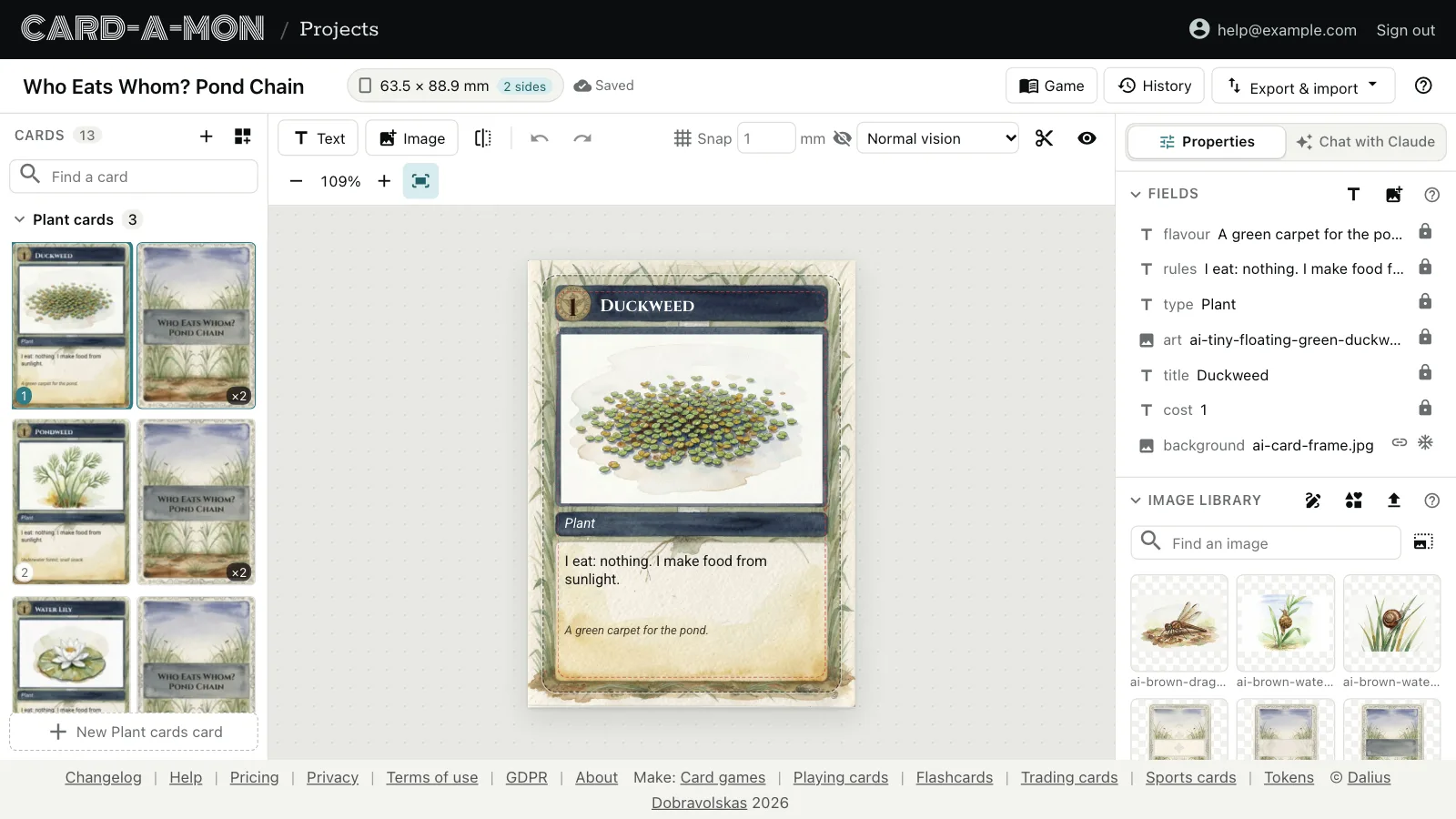
- The cards, on the left: every card in the project, as it will print, with its back beside it when the cards have one. Click a card's front or back to edit that side, drag it to change the order, and find one by its words with Find a card. Cards of different designs are in groups, one for each layout: the pond game has plants, small creatures and predators, and its rules.
- The card, in the middle. Text and Image add a field, a box for words or a picture, to every card of the layout; the flip button, or F and B, turns the card over. The dark dashed line is where the card is cut, and the red one inside it is as far as text is safe from the cut. The scissors show the card as it is cut out, without the bleed, the eye as it prints, without the guides and the stand-ins for empty fields, and Normal vision can be changed to see the cards as somebody colour-blind would.
- Properties, on the right: the fields on the card, the project's image library and how many copies of the card to print. With a field picked, its picture or font comes first. The ? beside a section says how it works. Chat with Claude, beside it, changes the cards when you ask: see Change it by asking.
- Along the top: the project's name, which you can click to change, its card size, and whether it is saved. Everything is saved as you go. Game is the game's rules and what is in the box, History its earlier versions, and Export & import takes the cards to a printer, a spreadsheet, a link or an online tabletop.
3. The tour
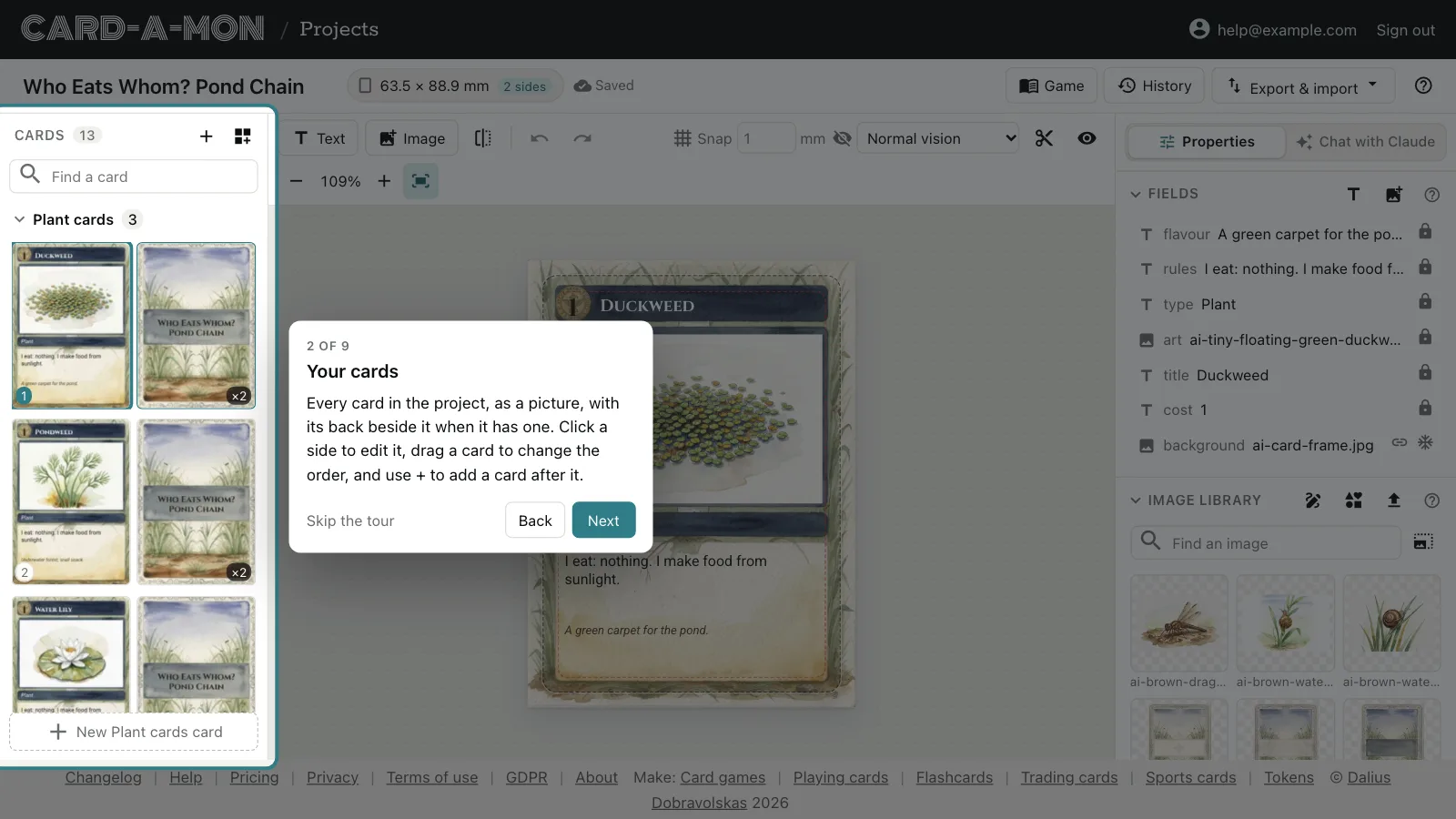
The first time you open the editor, it offers a tour: nine short steps round the screen, each pointing at the part it is about. The ? at the top right shows it again whenever you want it.
4. Size, bleed and backs
The card size picked for the project is not final. Click it at the top of the editor — the pond game's says 63.5 × 88.9 mm, 2 sides — to change the print shop, the size or the shape, or to give the cards a back or take it away.
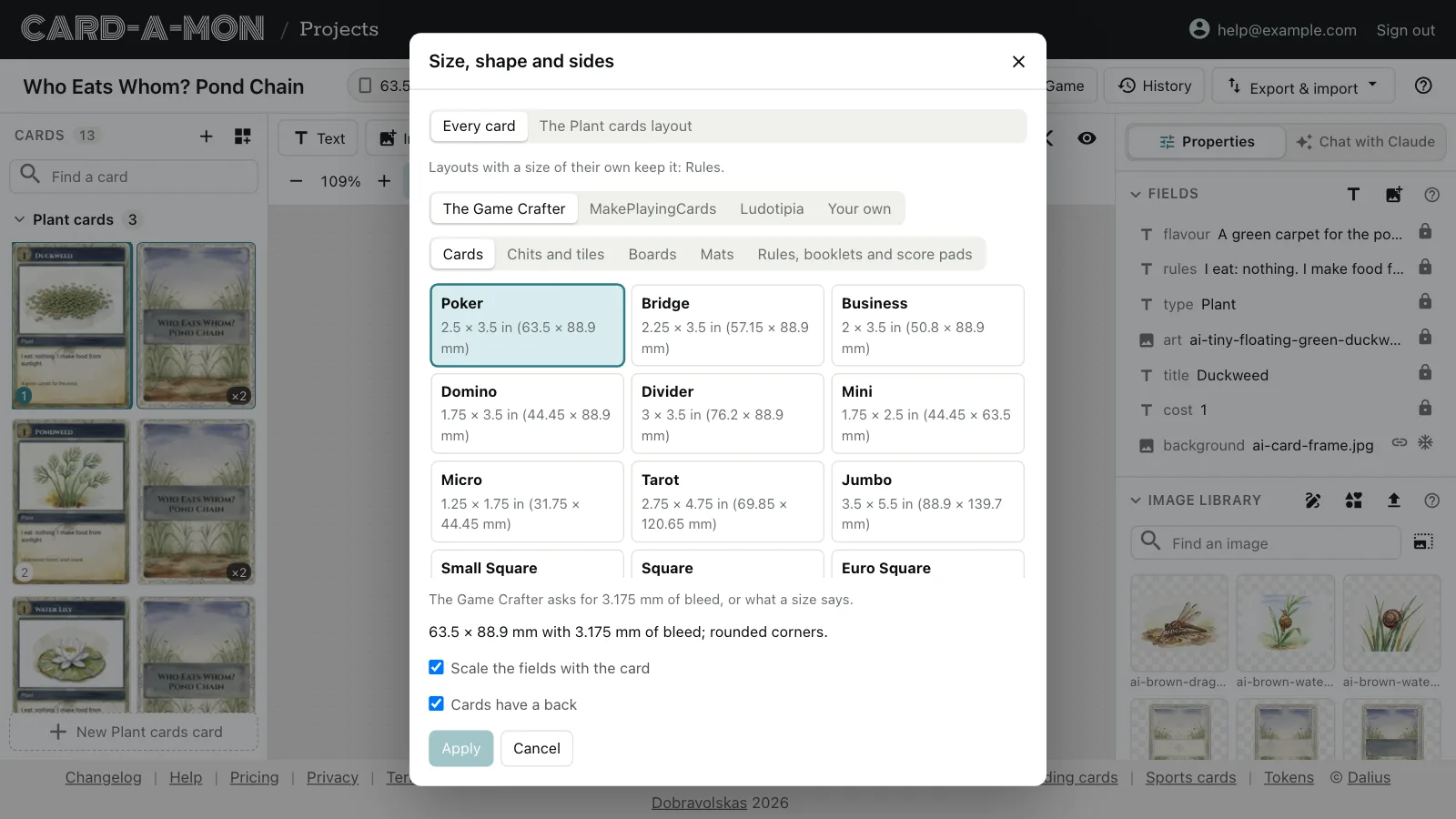
- Scale the fields with the card moves and resizes every field, and scales its text, so that the layout fits the new size. Untick it to keep the fields as they are.
- Cards have a back gives every card a back to design. Taking it away hides the fields on the back and leaves them out of exports, but keeps them, until the back is turned on again.
- A project with more than one layout can give a layout a size of its own: tokens beside the cards, say, or the pond game's rules, which are printed as pages of 88.9 by 127 mm. Pick the layout at the top of the dialog; Every card then changes the size of every other layout.
5. Cards and copies
+ at the top of the card list adds a card after the one you are editing, and the New … card button at the foot of each group adds one of that layout. A new card is laid out like the others, with its fields empty. The buttons on a card, when you point at it, duplicate it (Ctrl+D) or delete it.
Set how many of a card to print under Copies to print in Properties; the card list shows it as ×2, ×3 and so on. The print-and-play PDF prints each card that many times, and a Tabletop Simulator deck deals it that many times.
Ctrl+Z undoes a change and Ctrl+Shift+Z puts it back, and History goes back further: see History.
Where next
- Lay out the cards: Text and image fields, fonts and text that fits, what each card has of its own, and layouts for cards of different designs.
- Pictures: Upload pictures, pick icons, crop them and cut them to a shape, and say what each card's picture should show.
- Work on a game with Claude: Ask Claude, in the chat beside the cards, to change them, check them or price them, and have bots playtest the game.
All the guides. Questions or ideas: info@cardamon.lt.