Pictures
Every picture in a project is in its image library, in Properties: the ones you upload, the icons you pick from the icon library, and the ones you draw. This guide puts them on the pond game's Duckweed card.
The image library
Upload, at the top of the library, adds pictures from your computer. Pick an image field on the card, and the library is that field's: click a picture to put it on this card, or drag one onto any image field. On a side of the card with no image field, clicking a picture adds a field with it. Clear takes it off the card again.
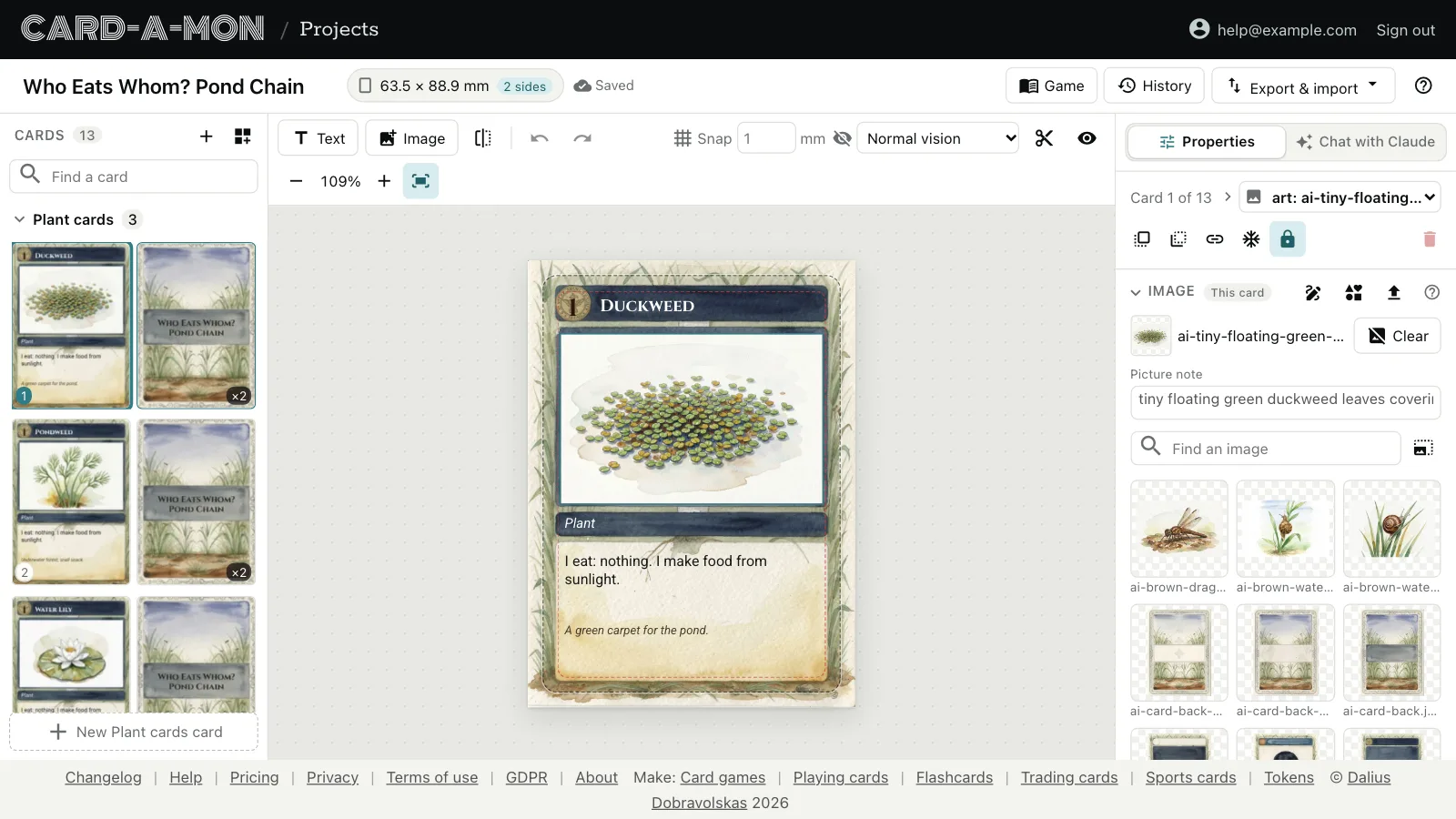
- Find an image searches the library by name, and the button beside it shows the pictures bigger or smaller.
- A picture larger than the cards need to print sharp is marked, and Downsize makes it the size they need, saving space. A picture too small to print sharp is marked too.
- The buttons on a picture in the library delete it, or open it in the drawing tool.
Fit and crop
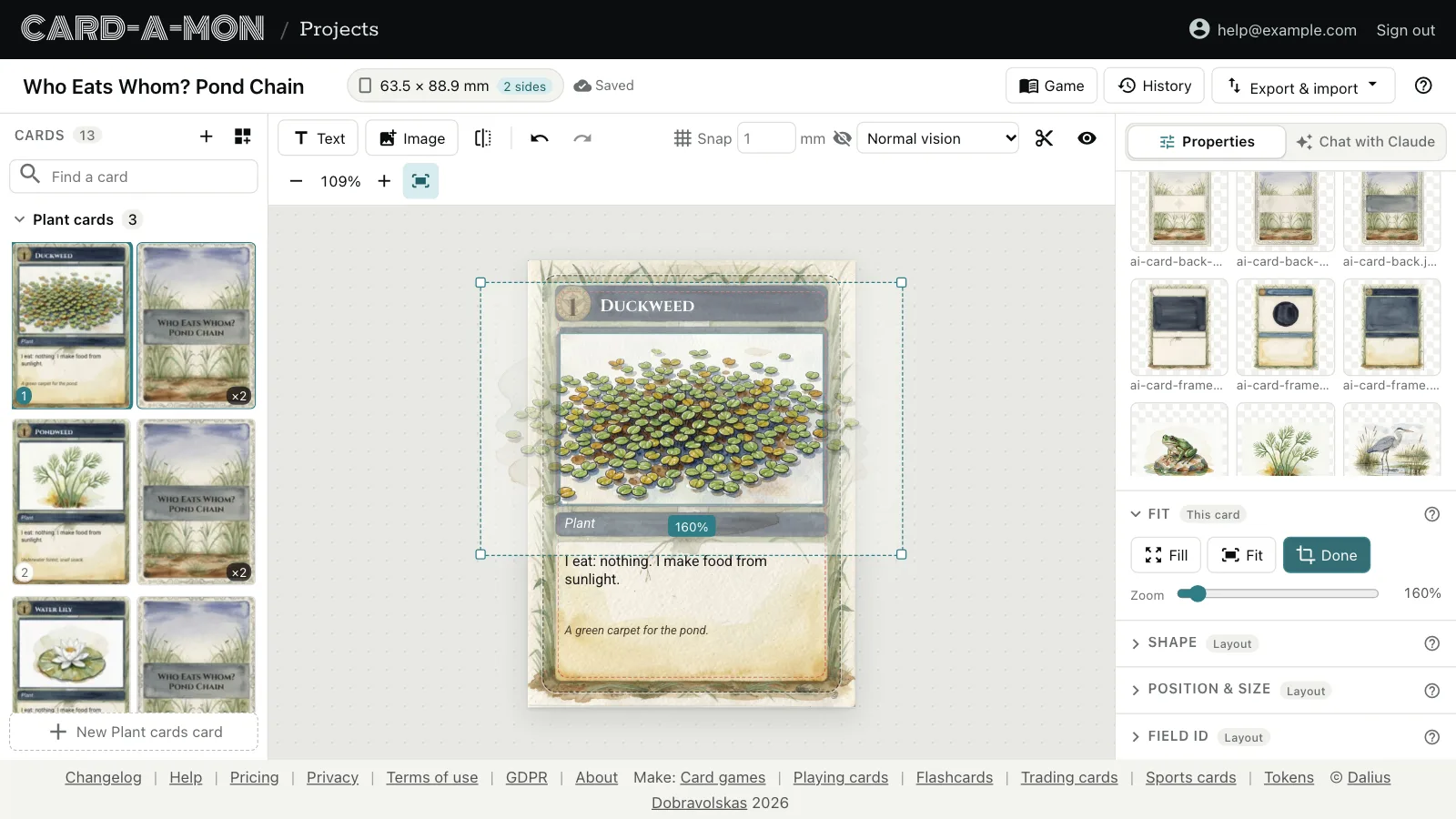
A picture fills its field to begin with, centred, with what does not fit cut off. Under Fit, in Properties, Fit shows the whole picture instead, and Fill goes back. To choose what shows, double-click the picture on the card, or press Crop: drag it about, zoom it by its corners, the mouse wheel or the Zoom slider, and press Enter or click away when you are done. The crop is this card's own.
Shape
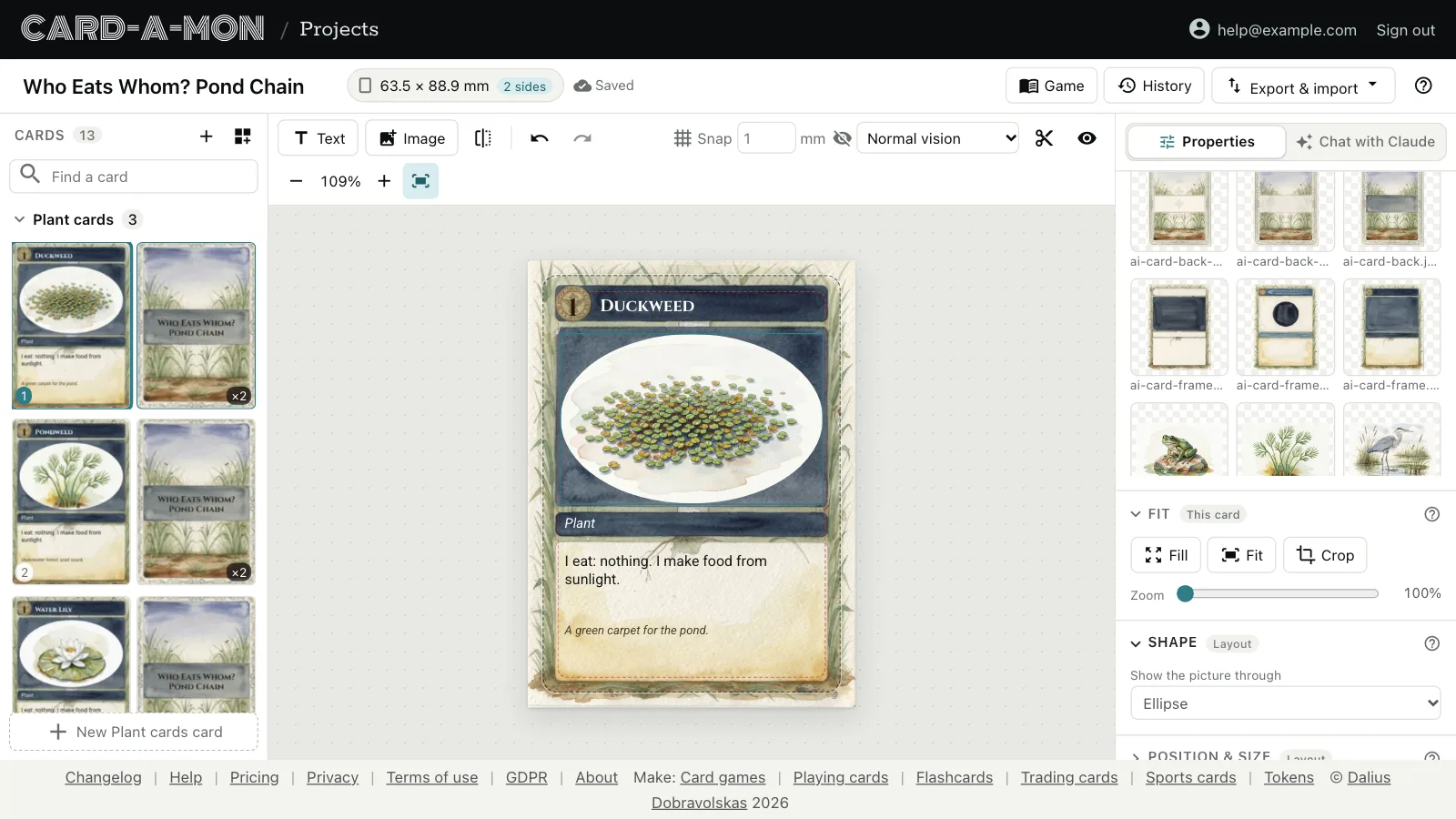
A frame with a round or many-sided window needs the picture cut to it. Draw the image field over the window, and under Shape pick what to show the picture through: a rounded rectangle, with a corner radius in millimetres, an ellipse, a circle, a hexagon or an octagon. The shape is the same on every card of the layout, and the PDF and the exported images are cut the same way.
Icons
The icon library button, beside Upload, finds icons among thousands, free to use in a game: game-icons.net, Twemoji and Kenney's board-game and game icons. Pick a colour, and a background if you want one, and click an icon to add it to the project's pictures, or, with an image field picked, to put it in the field.
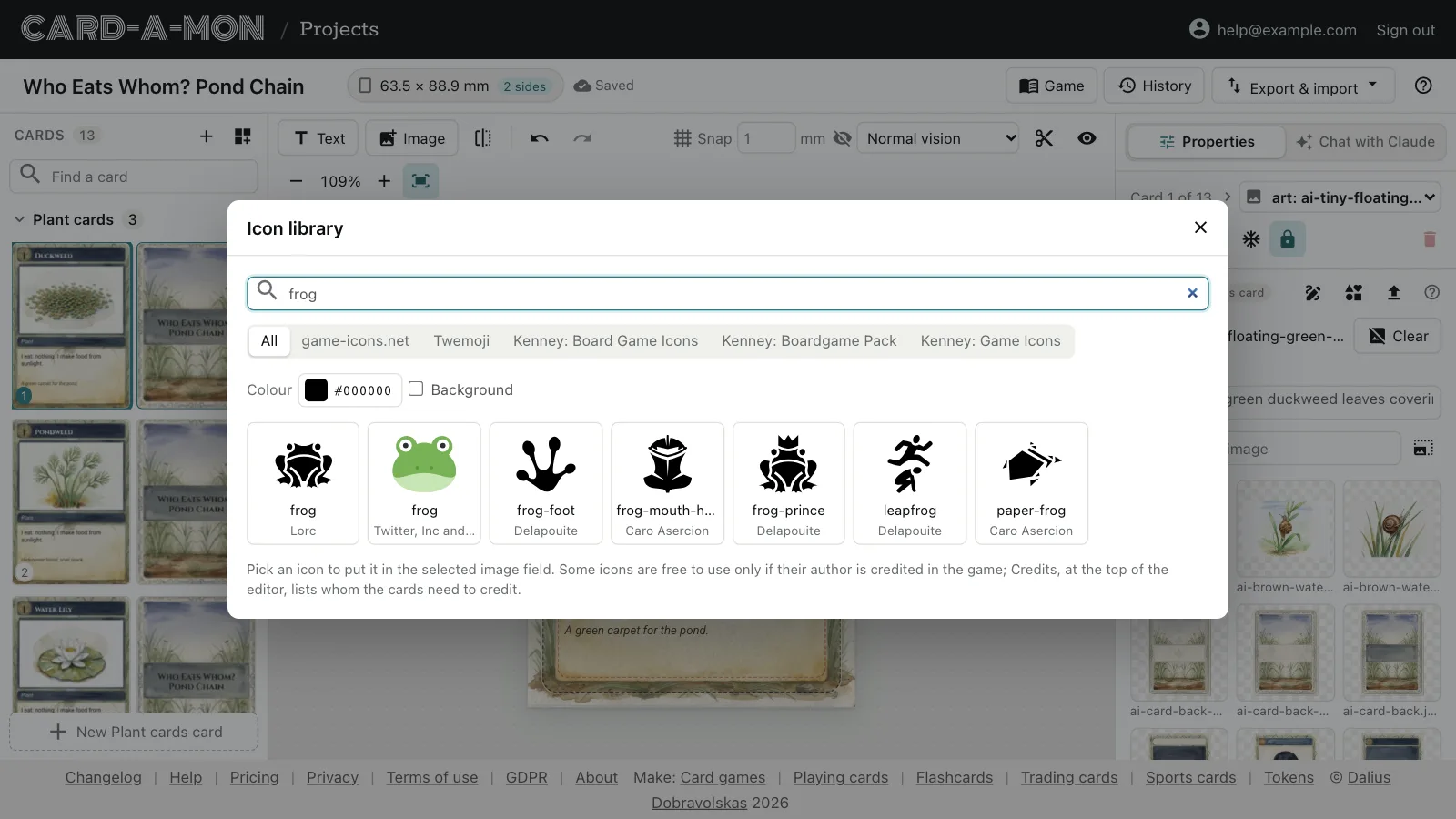
Some icons are free to use only if the game credits their author. Credits, under Export & import, lists whom the cards need to credit. An icon can go among the words of a text, too: see Text.
Draw shapes and frames
The pencil button, at the top of the library, opens the drawing tool: rectangles, rounded or not, ellipses, polygons, stars, lines and arrows, and the project's own pictures, in a colour or a gradient, with an outline, a shadow and a texture, for a card's frame, the bar behind its title or a badge for its cost. It saves as SVG, so what it draws prints sharp at any size, and a drawing opens in it again to be changed. See Draw frames and shapes.
Picture notes
Under the picture, in Properties, the Picture note says what the card's picture should show: “a heron standing in the reeds, at dawn”. Until the card has a picture, the note is written in its field in the editor, though not printed; and it is a column of the CSV, to hand to whoever draws the pictures. Claude writes one for each card it adds.
Where next
- Lay out the cards: Text and image fields, fonts and text that fits, what each card has of its own, and layouts for cards of different designs.
- Draw frames and shapes: Draw a card's frame, title bar and badges in shapes, colours and gradients, and combine shapes into new ones.
- Work on a game with Claude: Ask Claude, in the chat beside the cards, to change them, check them or price them, and have bots playtest the game.
All the guides. Questions or ideas: info@cardamon.lt.