Lay out the cards
A card is laid out once, and every card of its design follows: what changes from card to card is what its fields say and show. This guide goes through the pond game's Duckweed card, a field at a time. It assumes you know your way round the editor; if not, start with Your first project.
Fields
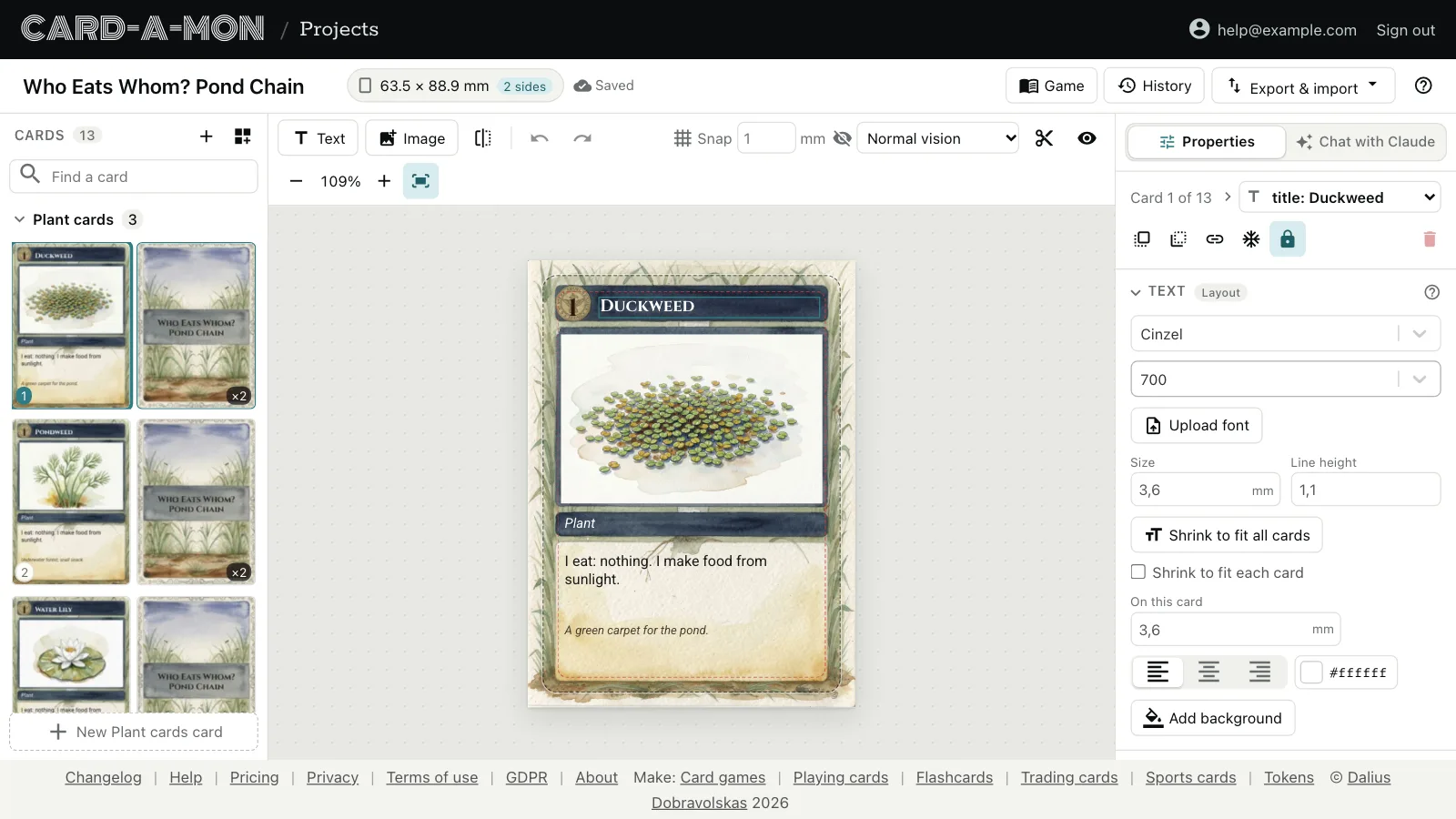
A field is a box on the card for words or a picture. Text and Image, above the card, add one to every card of the layout, in the same place; click to add it in the middle, or drag it to where it goes. The Duckweed card has seven: its frame, its picture, its name, the number in the corner badge, its type, what it eats, and a line of flavour text.
Click a field on the card to pick it, or pick it in the Fields list in Properties, where the top of the list is on top of the card. Properties then shows the field: what is changed most first, and its place and size, folded, below. Card 1 of 13, at the top, goes back to the card, as does Escape.
What is each card's own
A section in Properties says whom a change goes to. This card is the card's own: what a text field says, or the picture in an image field. All cards is every card — or Layout, in a project with more than one layout, every card of this one: where a field is, its size, its font and colour, and how a picture is cut. Change the Duckweed's title font, and the Pondweed's and the Water Lily's change with it; type a new name, and only the Duckweed's does.
Text
Click a picked text field again, or press Enter, to type into it; Escape stops typing. Ctrl+B and Ctrl+I make what is selected bold or italic. A picture from the project's image library can go among the words, the way a game puts a coin or a sword in its text: drag it into the text, or write its name in braces, as in Deal 2 {sword.svg}. It is one line high.
- Font: pick a typeface from the list, and its weight and style. Upload font adds your own, as a TTF, OTF or WOFF file; upload its bold and italic files under the same name to give it those. Upload only fonts you have the right to use and print.
- Size is in millimetres, as the card is; Line height is the space between lines, as a multiple of the size.
- Shrink to fit all cards sets one size on every card of the layout: the largest at which the text fits on all of them. Shrink to fit each card sets it smaller only on the cards it does not fit, each on its own, down to a least size. On this card sets the size on one card by hand. When the text does not fit on a card, the section says on how many.
- The alignment, and the colour.
Moving and resizing
Drag a picked field to move it, a handle to resize it, and the knob above it to turn it. Shift keeps its proportions, or turns it in steps of 15°; Alt resizes it from the middle. The arrow keys nudge it, and Shift with them moves it further. Position & size, in Properties, sets the same in millimetres.
A field snaps to the grid set by Snap above the card, and to the card's edges and middle, the safe line and the other fields; hold Ctrl, or ⌘ on a Mac, to move it freely. Set the grid to 0 to turn it off. Bring forward and Send backward, at the top of Properties, put a field over or under the others.
Locked, frozen, and the same on every card
Three buttons at the top of Properties keep a field as it is. A template's fields come locked, which is why the Duckweed's have a padlock in the Fields list.
- Lock keeps a field from being moved, resized or deleted. What it says or shows can still be changed.
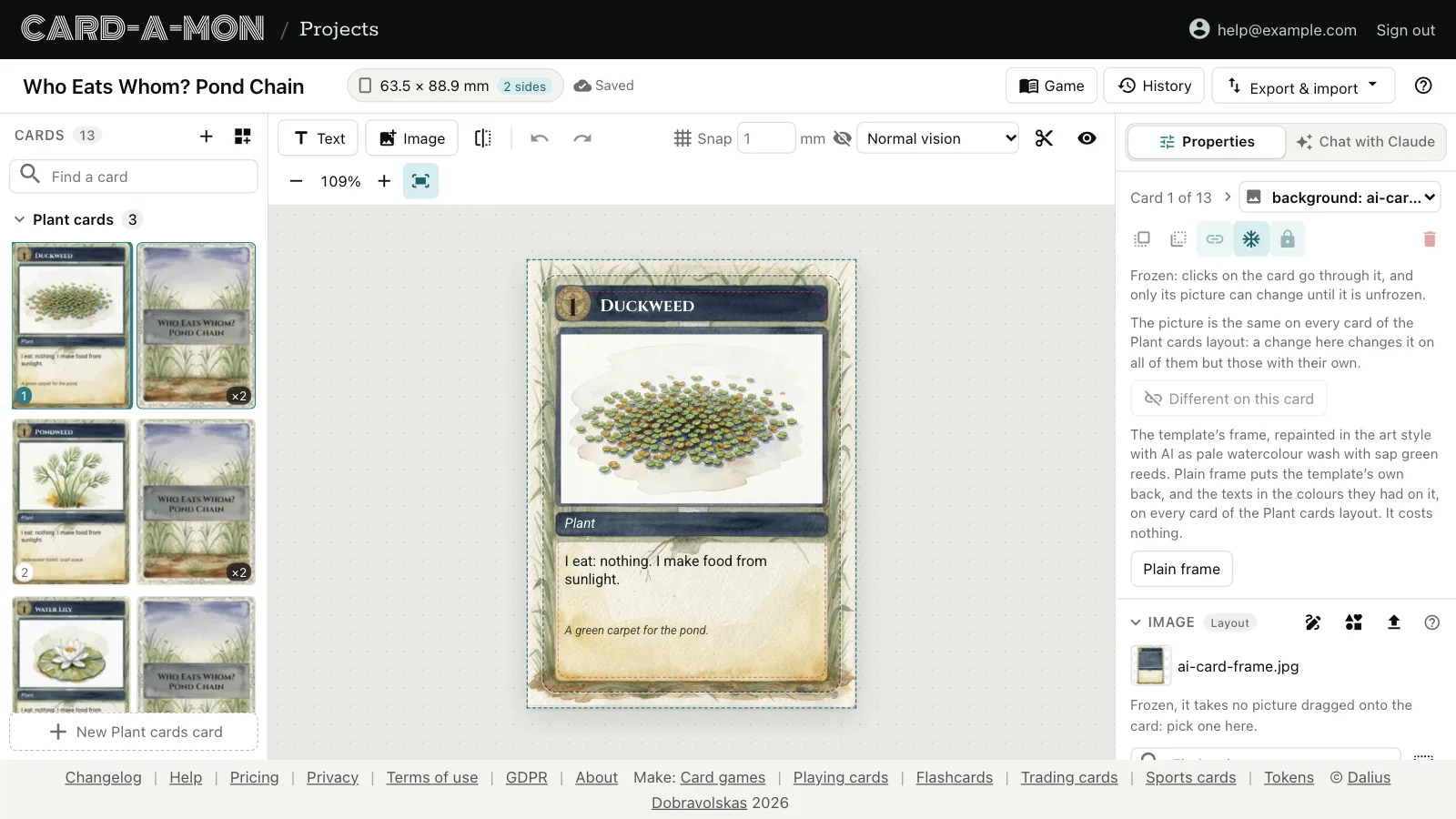
- Freeze is for a background: clicks on the card go through the field to those over it, and nothing about it can change but its picture. Pick it in the Fields list to change the picture, or to unfreeze it.
- Same on every card shows one text or one picture on every card of the layout, and a change to it changes all of them. Different on this card gives one card its own, which it keeps when the shared one changes.
The Duckweed's frame is all three: one picture for every plant card, frozen behind the rest.
Layouts
Cards of different designs are different layouts: the pond game has one for its plants, one for its small creatures, one for its predators, and one for its rules. Each has its own fields, and moving or restyling a field changes only the cards of its layout. The card list groups the cards by layout.
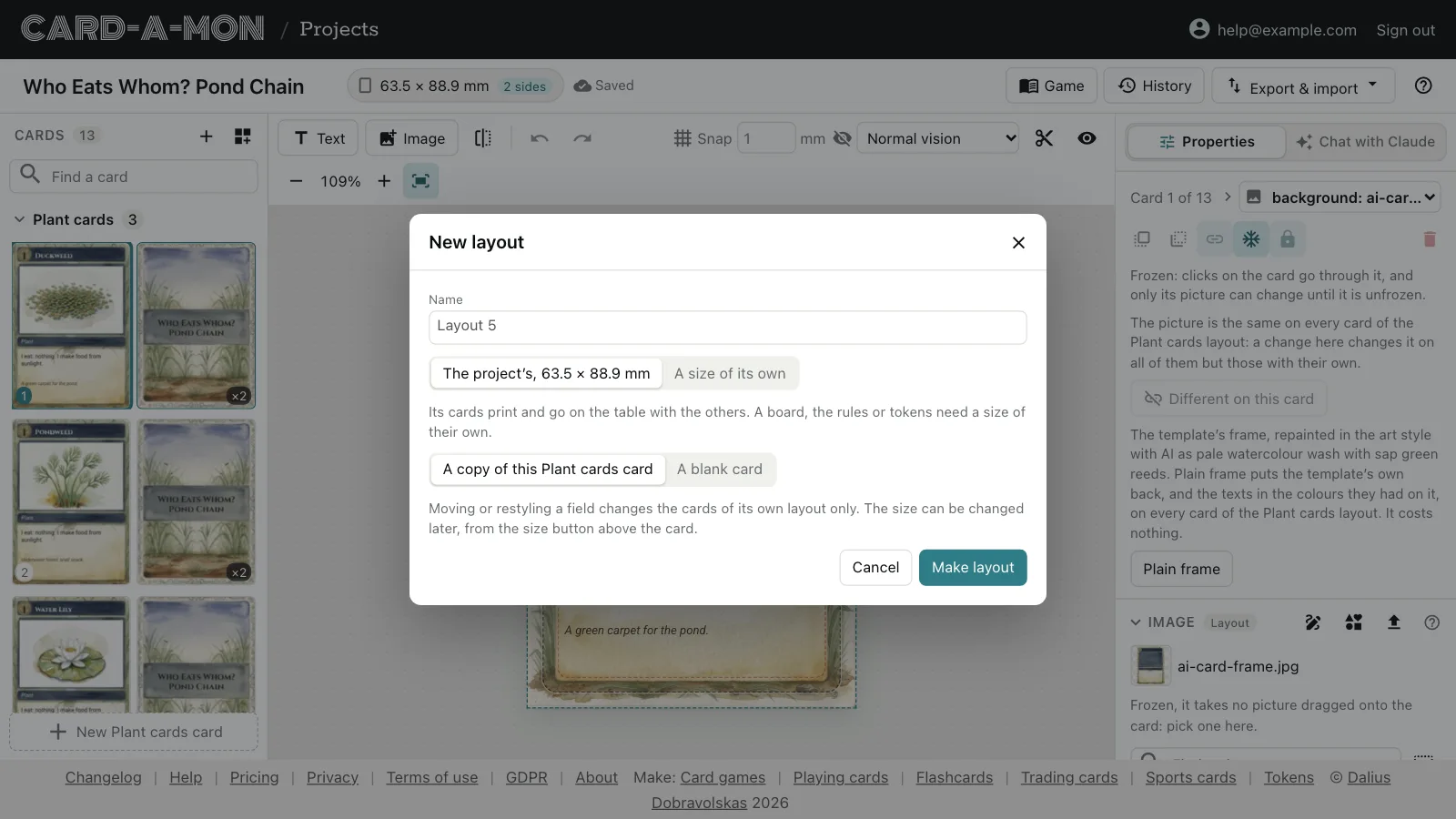
The button beside + at the top of the card list makes a new layout. It can be the size of the project's cards, or a size of its own, for tokens, a board, a mat or the rules beside the cards; and it can start as a copy of the card you are on, or blank.
A card can move to another layout with Layout, in Properties with no field picked; it keeps what its fields of the same id say. The buttons on a layout's group, in the card list, rename it or delete it with its cards.
Field and card ids
Every field and card has an id, under Field id and Card id in Properties. The ids are what a spreadsheet of the cards goes by: name the title field title and a spreadsheet's column headed “title” fills it. See Cards in a spreadsheet.
Where next
- Pictures: Upload pictures, pick icons, crop them and cut them to a shape, and say what each card's picture should show.
- Work on a game with Claude: Ask Claude, in the chat beside the cards, to change them, check them or price them, and have bots playtest the game.
- Cards in a spreadsheet: Fill the cards in from a CSV file or a linked Google Sheet, and keep them there.
All the guides. Questions or ideas: info@cardamon.lt.