Draw frames and shapes
The drawing tool draws in shapes: rectangles, rounded or not, ellipses, polygons, stars, lines and arrows, and the project's own pictures, in a colour or a gradient, with an outline, a shadow and a texture. A drawing is saved as SVG, so it prints sharp at any size and takes a few kilobytes, and it opens in the tool again as the shapes it is made of. It is made for the parts of a card that are drawn rather than painted: a frame, the bar behind a title, a box for the rules, a badge for a cost. This guide draws a title bar on the pond game's frame.
Open it
In the image library, in Properties, the pencil button at the top, Draw a picture, opens the tool with a new drawing (with no pictures in the project yet, it is the Draw button). The pencil button on a picture in the library opens that picture in it.
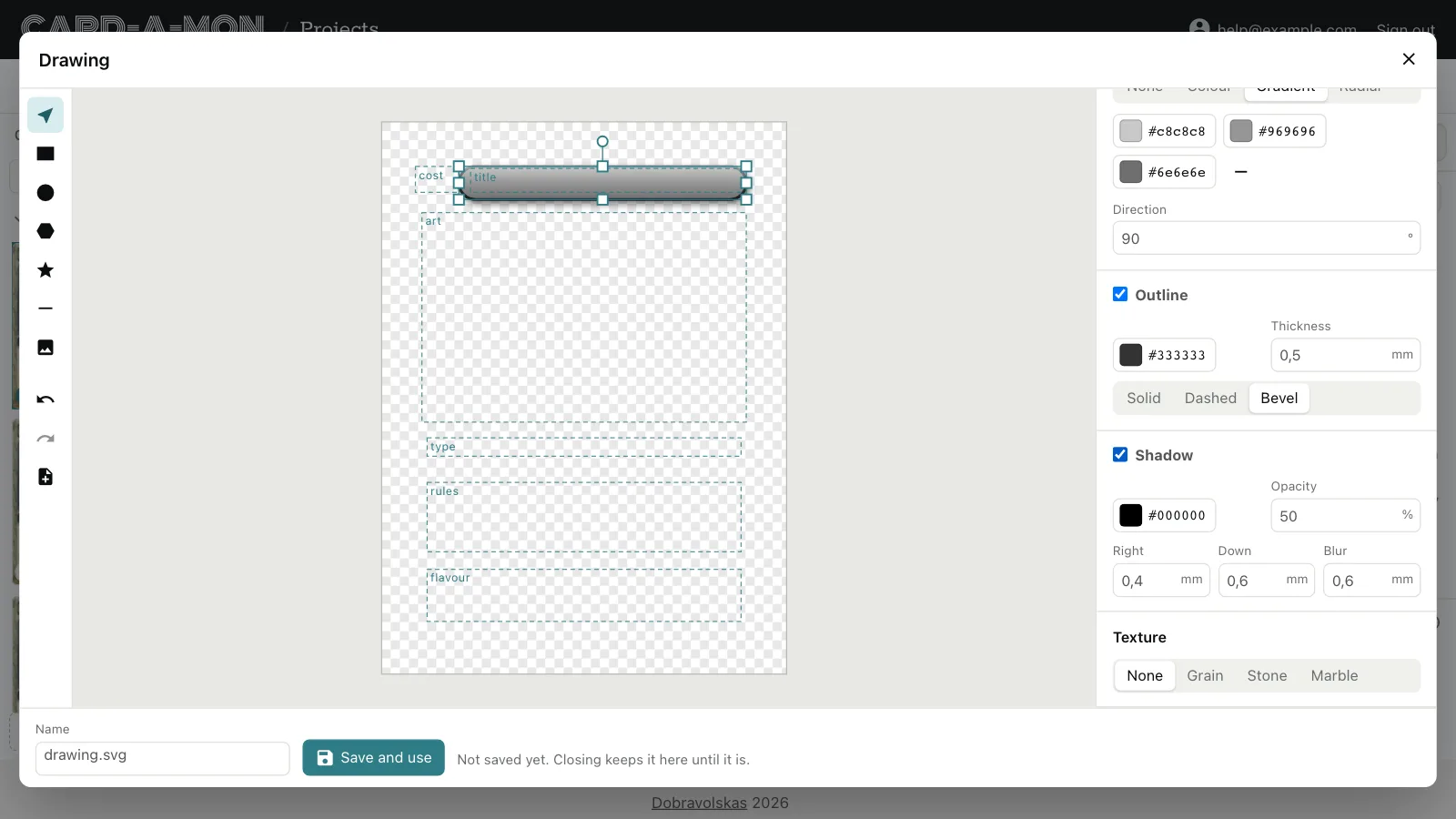
Pick an image field on the card first, the frame say, and the drawing is that field's size, with the card's other fields marked on it as dashed boxes, so that a bar can be drawn round the title and a box round the rules. With no field picked, the drawing's width and height are set under Canvas, in the panel on the right while no shape is picked; there, too, the fields can be hidden and snapping turned off.
Draw shapes
Pick a tool on the left, and drag on the canvas to draw a shape the size of the drag; a click without a drag draws one of a size to start from. Then the tool goes back to Select, to move what was drawn.
- Rectangle (R): a bar, a box, a frame. Its corners can be rounded: see Corners.
- Ellipse (E): Shift draws a circle.
- Polygon (P): a triangle, a hexagon, an octagon: up to 24 sides.
- Star (S): up to 24 points, and how far in between them it reaches, under Inside.
- Line (L): with an arrow at the start, the end or both. Shift keeps it to steps of 45°.
- Picture: one of the project's pictures or icons, an icon for a badge say: see Pictures in a drawing.
Shift draws a square, a circle, or a polygon or star as wide as it is high. Shapes snap to the canvas's sides and middle, to the edges of the card's fields and to each other's; hold Alt to place one freely.
Move, resize and turn
With Select (V), click a shape to pick it, Shift-click to pick more, or drag a box round several. Drag a shape to move it, Shift keeping it to one way, across or down; drag its handles to resize it, Shift keeping its proportions; drag the round handle above it to turn it, Shift in steps of 15°. The arrow keys move it by half a millimetre, by 5 with Shift.
The panel on the right has the shape picked in numbers: where it is, how large, how far it is turned and how see-through. Its buttons put it against a side of the canvas or in the middle, make it as large as the canvas, for a background, and move it to the front or the back, or one step forward or back.
Shapes, below, lists them all, the one in front at the top: click one to pick it, even when it is hidden behind another. Its lock keeps a shape, a background say, from being picked on the canvas, so that clicks go past it to the shapes in front.
Fill, outline, shadow and texture
- Fill: none, a colour, a gradient along a line in the direction you set, or a radial one, from the middle out. A gradient has two colours, or three with the + button: light, dark, light makes a bar look like metal.
- Outline: its colour and thickness, solid or dashed, or Bevel, lighter along the top and darker along the bottom, for an edge that stands out.
- Shadow: its colour, how see-through, how far right and down it falls, and how blurred.
- Texture: Grain, as of paper; Stone, patches as of stone or worn metal; or Marble, veins; as strong as you set.
Corners
A rectangle's corners are rounded all alike, by the Radius, and Round ends rounds them as far as they go, for a bar with round ends. Each corner rounds each by its own radius, and Top, Bottom, Left and Right round only those. Bulging ends makes the ends bulge out as arcs, as on the bar of a fantasy card's title; the Bulge is how far they reach past the straight sides.
Combine shapes
Pick two shapes or more, and the panel combines them into one:
- Unite joins them, a bar and a round badge at its end say, outlined round the outside.
- Subtract cuts the ones in front out of the one at the back: a round notch out of a box.
- Intersect keeps only what all of them cover.
- Exclude keeps what only one of them covers, cutting out where they overlap.
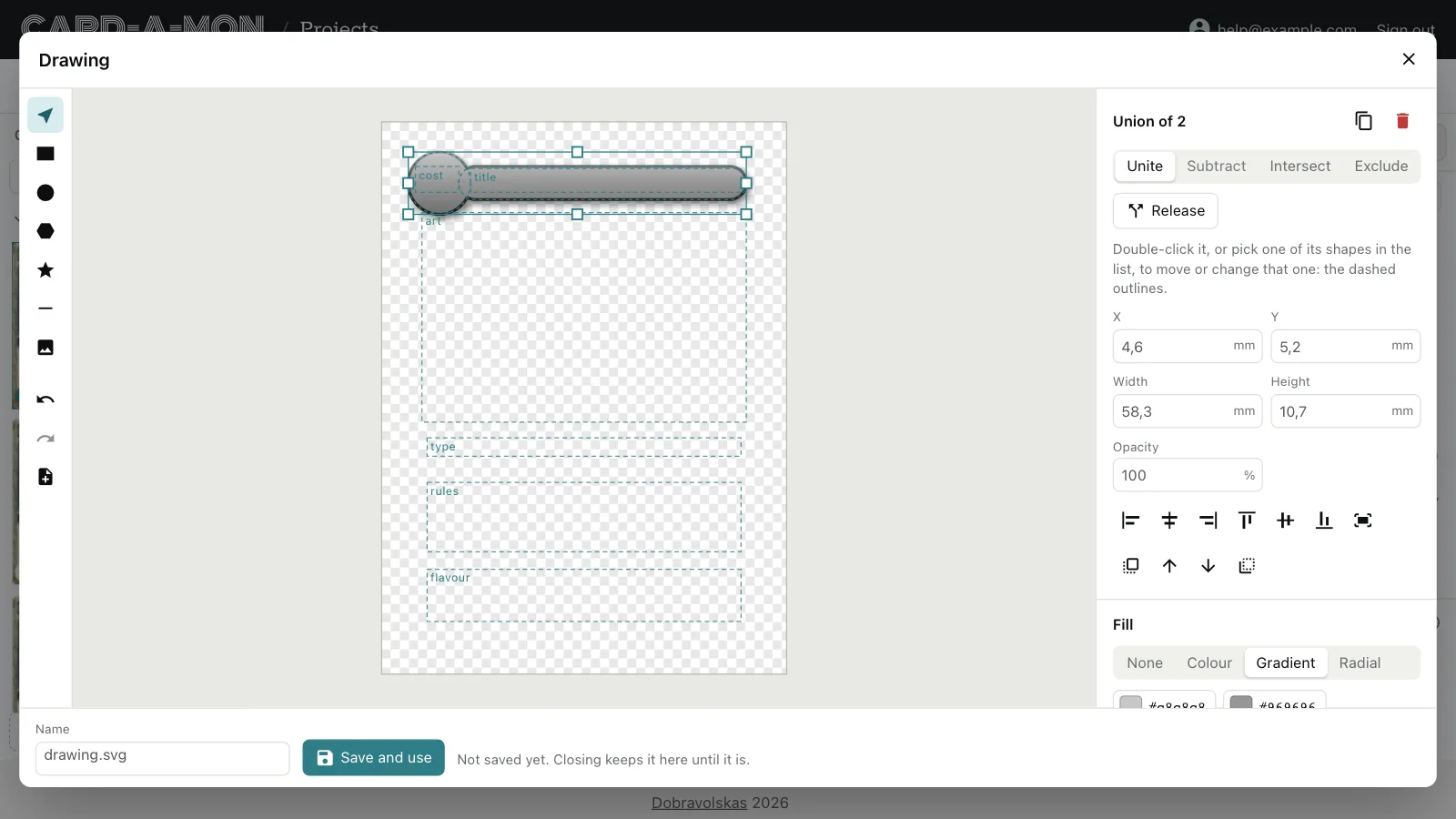
The combined shape has the fill and outline of the one at the back, and its outline runs all round it, along the cuts too. The shapes stay as they were inside it, drawn dashed while it is picked: double-click it, or pick one under it in the list of shapes, to move or resize that one, and the combined shape follows. How they are combined can be changed afterwards, and Release takes them apart again, each with its own look back. Lines and pictures cannot be combined, only shapes with an inside.
Pictures in a drawing
The Picture tool puts one of the project's pictures in the drawing: an icon from the icon library on a badge, say. It is copied into the drawing's file, so the drawing still shows it if the picture is deleted from the library. It is resized keeping its proportions, and can have a shadow.
A picture that is not a drawing, an upload say, opens in the tool as a picture to draw on: it is put in as the bottom shape, locked, and the drawing is saved as a new picture, leaving it as it was.
Save, and change it later
Name the drawing at the foot of the tool. With an image field picked, Save and use adds the drawing to the library and puts it in the field; with none, Save adds it to the library. Closing the tool keeps the drawing until it is saved, or until New drawing, at the top of the tools.
A drawing opens in the tool again as the shapes it was drawn with. Saved under its own name, it changes on every card that shows it; under a new name, it is a copy, to change for another kind of card; under the name of another picture, the tool asks before putting it in that one's place. A saved drawing keeps its size, so that it still fits the fields it is in.
The frames and backs a template draws are drawings too, and so are the cost badges on the fantasy card: open one here from the library to change its colours, its border or its panels, or to copy it. The ground under a frame is locked, so that clicks on the canvas pick what is on it; pick it in the list of shapes to change it. The grain on the fantasy card's frame, and the lattice on the patterned back, are pictures in the drawing, to fade or take away.
Undo (Ctrl+Z) and redo (Ctrl+Shift+Z or Ctrl+Y) go back and forth through what was done in the tool.
Keys
On a Mac, Cmd does what Ctrl does.
- V, R, E, P, S, L: Select, Rectangle, Ellipse, Polygon, Star, Line.
- Shift while drawing: a square or a circle, a line at steps of 45°. While resizing: the same proportions. While turning: steps of 15°.
- Alt while drawing or dragging: no snapping.
- The arrow keys: move the shapes picked by 0.5 mm, by 5 mm with Shift.
- Delete or Backspace: delete them. Ctrl+D: copy them. Ctrl+A: pick every shape not locked.
- Ctrl+Z: undo. Ctrl+Shift+Z or Ctrl+Y: redo.
- Escape: let go of the shapes picked, or of the tool; with neither, close the tool.
Where next
- Lay out the cards: Text and image fields, fonts and text that fits, what each card has of its own, and layouts for cards of different designs.
- Pictures: Upload pictures, pick icons, crop them and cut them to a shape, and say what each card's picture should show.
- Print the cards: A print-and-play PDF, the check before printing, images for a print shop and what they cost there, and sending a game to The Game Crafter.
All the guides. Questions or ideas: info@cardamon.lt.